👥 Leads Management
Manage your prospects effectively with a centralized list and detailed lead tracking. The Leads module allows you to move beyond simple data storage to active engagement through integrated chat, team assignment, and pipeline tracking.
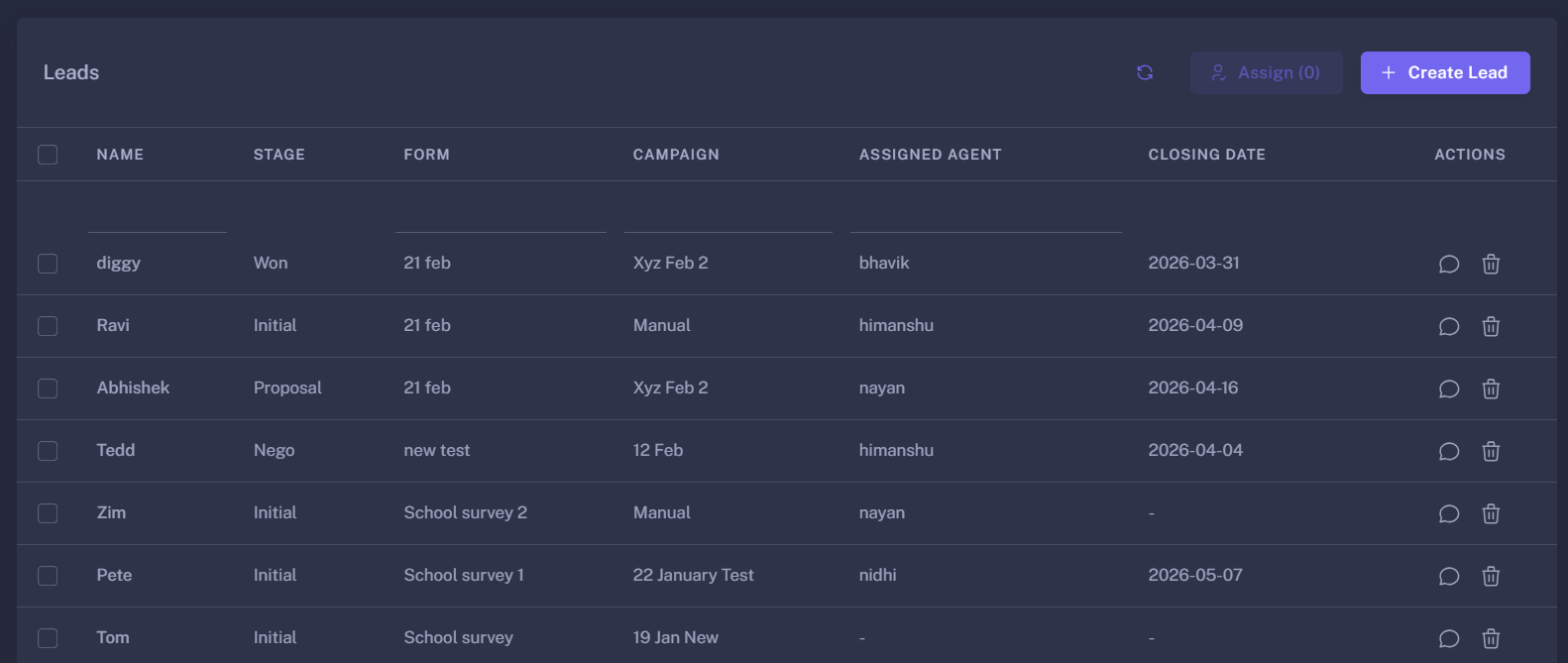
📋 Lead List Overview
The main leads table provides a bird’s-eye view of your current pipeline. It supports server-side pagination and real-time filtering to handle high volumes of data efficiently.
🔑 Key Actions
- Bulk Assignment: Admins and Managers can select multiple leads and assign them to a specific Agent/Moderator in one click.
- Instant Communication: Click the Chat Icon on any lead to open Mehery conversation window. The system automatically encodes lead data (Name, Phone, Email) to initiate a seamless chat experience.
- Manual Creation: Use the “Create Lead” button to manually input data for prospects gathered through offline channels or phone calls.
🔍 Lead Details & Overview
Clicking on any lead row opens a comprehensive overview. This view is divided into two main tabs: Details and Timeline.
1. The Details Tab
This is where the active management of a lead happens:
- Lead Progress (Stages): Visualize where the lead stands in the sales funnel. You can update the stage, set an expected Closing Date, and reassign the lead to a different team member.
- Dynamic Data Engine: The system renders fields dynamically based on the form the lead originated from. It supports:
- Validated Inputs: Phone numbers with country codes, emails, and required fields.
- Document Management: Upload and view specific documents (PDFs, Images) required for lead qualification.
- Field-Level Permissions: Field visibility and “Read-Only” status adjust automatically based on user roles.
- Activity Logging: Record follow-ups, notes, and specific interactions to ensure every team member is updated on the lead’s status.
2. The Timeline Tab
Total transparency of the lead’s journey.
- History Tracking: View every change made to the lead, including stage transitions, field updates, and assignment changes.
- Audit Trail: See exactly who made a change and when it happened, ensuring accountability across the sales team.
🛠 Manual Lead Creation
When creating a lead manually, the process is streamlined:
- Select a Form: Choose a predefined form to automatically generate the necessary input fields.
- Smart Fill: If you are coming from a specific referral link, the system can auto-populate known parameters (like name or phone number).
- Initial Stage: All manual leads are automatically placed in the “Initial” stage to begin their journey through your pipeline.
🚀 Pro-Tips for Lead Management
- Use the Chat Icon: Don’t wait for leads to reach out. Use the integrated chat to follow up on new leads as soon as they appear in the list.
- Set Closing Dates: Always set an estimated closing date to help the Dashboard calculate accurate pipeline velocity and revenue projections.
- Monitor the Timeline: If a lead is “stuck,” review the timeline to see historical interactions and identify why the conversion is stalling.
Effective lead management is the difference between a prospect and a customer.