🏗️ Fields Management
Fields are the core components of your feedback collection strategy. They define the specific information you want to gather—from standard contact details to the critical Rating metrics that drive your sentiment analysis and business scores.
📑 Understanding Fields
Feedback Management distinguishes between system-critical fields and custom business fields.
1. Default Fields (Protected)
The system initializes four protected fields that are essential for identifying respondents and calculating your “Performance Segments.” These cannot be edited or deleted:
- Name: Captures the customer’s identity.
- Phone & Email: Essential for closing the loop and following up on critical feedback.
- Rating: The primary metric used to calculate the overall percentage score for a submission.
2. Custom Fields
Create bespoke fields to gain deeper context into the feedback (e.g., “Branch Visited,” “Order Number,” or “Server Name”).
🛠️ Anatomy of a Field
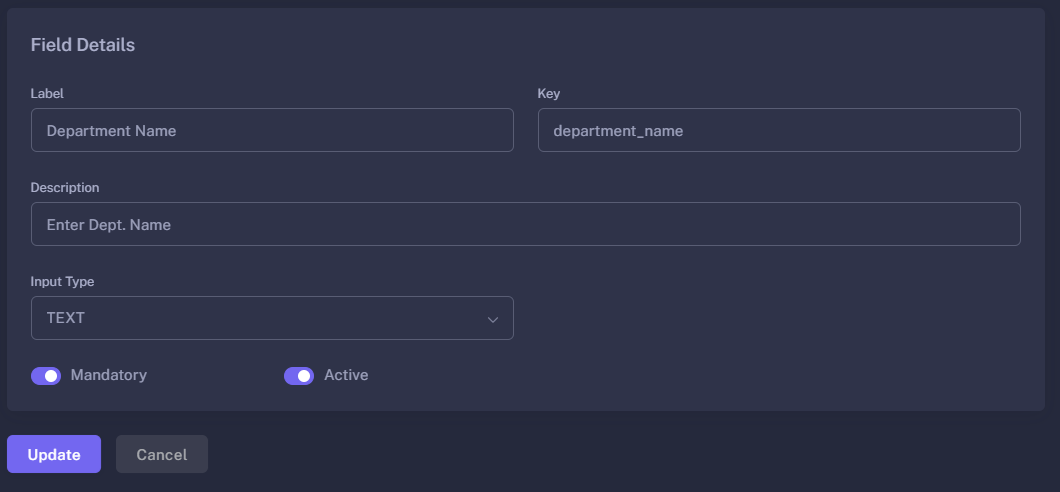
When creating or editing a field, you define the following properties:
| Property | Description |
|---|---|
| Label | The public name shown on the form (e.g., Service Quality). |
| Key | The internal system ID (e.g., service_quality). This is automatically generated from the Label. |
| Description | Hint text provided to the customer to help them understand what to enter. |
| Input Type | Defines the data format (Text, Date, Rating, etc.). |
| Mandatory | A toggle to ensure the field must be filled before submission. |
| Active | A toggle to enable or disable the field for use in new forms. |
🌟 Feedback-Specific Input Types
While standard types (Text, Email, Phone, Date, Boolean, Document) are available, Feedback Management introduces specialized types:
- ⭐ RATING: The most critical type for this module. It allows customers to provide a star-based score that the system converts into a percentage for the Dashboard.
- 📂 DROPDOWN (Options): Perfect for categorizing feedback. You can manually configure a list of options, each with a display Label and an internal Code.
- 📋 QUESTION: (Used within the Form Builder) Specifically designed for weighted surveys where multiple questions contribute to a single total score.
⚙️ Configuring Dropdown Options
When you select the DROPDOWN input type, a configuration section appears:
- Option Label: What the customer sees (e.g., Very Satisfied).
- Option Code: What the system stores (e.g.,
v_sat). - Easy Management: You can add, remove, and reorder these options to refine your survey experience.
🚀 Best Practices
- Keep Keys Clean: While the system auto-generates keys like
date_of_visit, ensure they are descriptive. These keys appear as column headers in your Excel Exports. - Use Ratings for Sentiment: Always include at least one Rating type field if you want the dashboard to generate “Good/Poor” segmentation analytics.
- Mandatory Contact Info: If you plan to use the Chat feature to resolve issues, make sure “Phone” or “Email” fields are marked as Mandatory.
Fields define the “What” of your feedback; Forms organize them into a conversation.