📝 Forms Management
Forms are the customer-facing gateway of your Lead Management system. They allow you to bundle multiple Fields into a cohesive layout, apply brand identity, and define strict data access rules for different user roles.
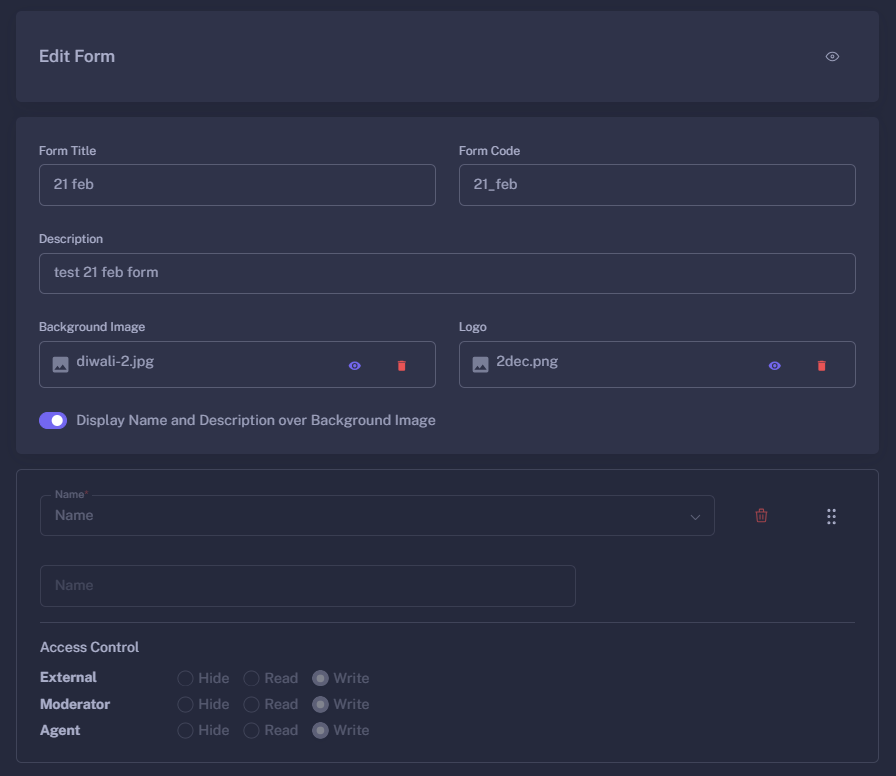
🏗️ The Form Builder
The builder provides a flexible, drag-and-drop environment to construct your lead capture forms.
🔑 Key Builder Features
- Dynamic Field Selection: Choose from your library of pre-defined fields using an autocomplete search.
- Drag-and-Drop Reordering: Use the Grip Icon (vertical dots) to rearrange fields instantly. The order in the builder is exactly how the fields will appear to the customer.
- Protected Fields: To maintain system integrity, the Name field is mandatory in every form and cannot be removed.
- Data Integrity Protection: Once a form has captured its first lead, the field structure becomes locked. This prevents data corruption by ensuring the underlying database schema remains consistent.
🔐 Granular Access Control (H-R-W)
One of the most powerful features of the Form system is the ability to define permissions for every single field based on the user’s role.
For each field, you can set permissions for the External Contact, Moderator, and Agent:
| Level | Mode | Behavior |
|---|---|---|
| H | Hide | The field is completely invisible to this role. |
| R | Read | The field is visible but cannot be edited (locked). |
| W | Write | The field is visible and can be filled out or updated. |
Example: You might set a “Internal Notes” field to Hide for the External Contact but Write for the Agent.
🎨 Branding & Customization
Make your forms look like a native part of your business with visual settings:
- Banners & Logos: Upload a high-quality background image and your company logo (Max 1MB).
- Overlay Toggle: Use the “Display Name and Description” switch to decide if the form text should appear directly over the background image with a smart overlay.
- Real-Time Preview: At any time, click the Eye Icon to open a live preview. This shows exactly what the customer will see, including your branding and field validations.
📋 Form Operations
From the main Forms list, you can manage your collection efficiently:
- Clone Form: Quickly duplicate an existing form. This copies all fields, descriptions, and access control settings—perfect for creating slightly different versions for A/B testing.
- Server-Side Search: Instantly find forms by Title or Code, even if you have hundreds of variations.
- Validation: The system automatically checks for required fields, valid email formats, and phone numbers before allowing a form submission.
🚀 Best Practices
- Test via Preview: Always use the “Preview” button to check the mobile-responsiveness of your background images and logos.
- Auto-Generating Codes: The system automatically creates a
form_codebased on your title. Keep these codes clean as they are used in your Campaign tracking links. - Role Simulation: When setting Access Control (H-R-W), double-check that your Agents have “Write” access to fields they need to update during follow-ups.
Forms transform raw fields into a structured conversation with your prospects.