🏗️ Fields Management
Fields are the essential building blocks of your lead capture process. They define the specific information you want to collect—such as dates, contact details, or documents—and determine how that data is validated and stored.
📑 Understanding Fields
The system categorizes fields into two types to ensure data integrity while maintaining flexibility.
1. Default Fields
To ensure basic lead tracking works out of the box, the system automatically generates three “Protected” fields. These cannot be edited or deleted as they are core to the communication features:
- Name: Captures the prospect’s full name.
- Phone: Validated phone input with country code support.
- Email: Validated email address format.
2. Custom Fields
You can create an unlimited number of custom fields to tailor the system to your specific business needs (e.g., “Budget”, “Project Type”, or “Preferred Meeting Date”).
🛠️ Anatomy of a Field
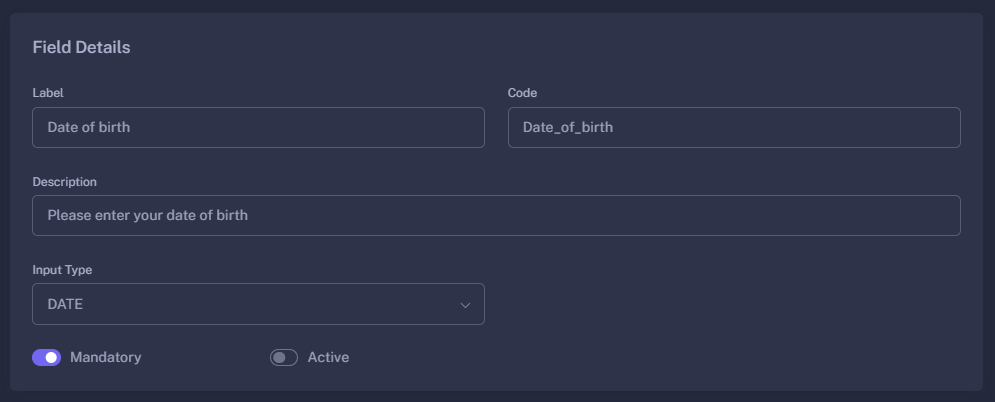
When creating or editing a field, you define several key properties:
| Property | Description |
|---|---|
| Label | The public-facing name of the field (e.g., Date of Birth). |
| Code | The internal system ID (e.g., date_of_birth). This is used for data mapping. |
| Description | Acts as a placeholder or hint text for the user filling out the form. |
| Input Type | Determines the format of the data (see “Supported Input Types” below). |
| Mandatory | A toggle to decide if the field is required to submit the form. |
| Active | Determines if the field is available to be used in new forms. |
🧬 Supported Input Types
The system supports a variety of data formats to ensure you collect high-quality data:
- TEXT: Standard single-line text input.
- EMAIL: Specifically validated for correct email formatting.
- PHONE: Includes a country code picker and number validation.
- DATE: Opens a calendar picker for consistent date formatting.
- DROPDOWN (Options): Allows users to select from a predefined list of choices.
- DOCUMENT: Enables leads to upload files (PDFs, Images) directly.
- BOOLEAN: A simple Yes/No switch.
📥 Importing Fields
To save time, you can use the Import Fields feature. This allows you to pull existing field definitions from your global “Customer” database into the Lead Management module.
When importing, the system automatically maps existing types (like dropdown or boolean) into the correct Lead Management format, ensuring your data remains consistent across the entire platform.
🚀 Best Practices
- Use Descriptive Codes: When creating custom fields, use clear codes like
preferred_contact_timeinstead offield_1. This makes your lead exports much easier to read. - Toggle Mandatory Sparingly: While it’s tempting to make every field mandatory, shorter forms usually lead to higher conversion rates.
- Keep Codes Unique: Ensure your field codes are unique to avoid data overwriting when processing lead responses.
Fields define the “What” of your data collection; Forms define the “How”.