📝 Forms & Survey Builder
Forms are the primary tools for capturing customer sentiment. They combine your standard contact fields with specialized rating questions and scoring logic to transform qualitative feedback into quantitative business data.
🏗️ The Direct-Link System
In Feedback Management, links are generated directly from the Forms list.
- Copy Link: Click the Link Icon on any form to copy its public URL. The system automatically detects your domain and environment to provide a ready-to-share link.
- No Campaigns Needed: Since feedback is often tied to a specific touchpoint (like a “Support Survey”), you can share these links directly via email, QR codes, or embedded buttons.
🎨 Branding & Visual Identity
Professionalize your feedback experience using the built-in media tools:
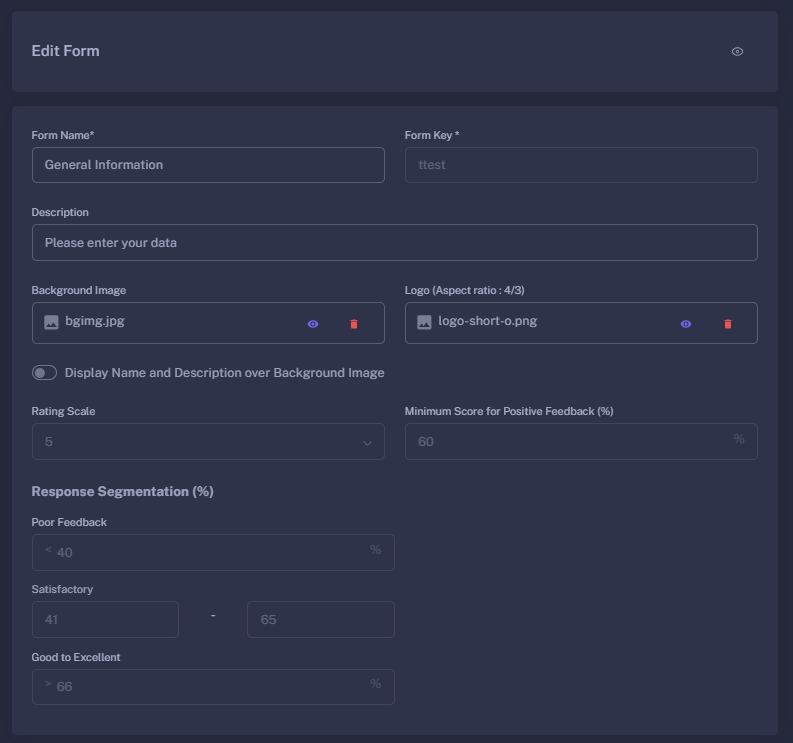
- Background Banner: Upload a high-resolution image (Max 1MB) to serve as the form’s backdrop.
- Company Logo: Add your brand logo with a recommended 4:3 aspect ratio.
- Smart Overlay: Toggle the “Display Name and Description” switch to determine if text should appear clearly over your background image with a professional overlay.
📊 Scoring & Intelligence Configuration
This section defines how the system interprets customer responses on your Dashboard.
1. Rating Scale
Define the universal scale for all rating-based questions in the form. Choose between 2, 3, 5, or 10-point scales. Note: Once a form has received responses (Tikats), the scale is locked to maintain data integrity.
2. Response Segmentation
Customize how the system categorizes feedback quality. The system uses Smart Boundaries:
- Poor Feedback: Responses below your defined maximum (e.g., 0% - 40%).
- Satisfactory: The system automatically calculates the minimum based on your “Poor” threshold.
- Good to Excellent: Responses hitting the highest tier (e.g., 66% - 100%).
3. Positive Score Threshold
Set a Minimum Positive Score (%). Any feedback falling below this percentage can be flagged for immediate intervention, while those above it can be automatically marked as “Positive” in your analytics.
🛠️ Building the Form Structure
The builder supports two distinct types of fields using a Drag-and-Drop interface:
📋 Regular Fields
These are standard data points (Name, Email, Phone, Comments).
- Access Control: Just like Leads, you can set every field to Hide (H), Read (R), or Write (W) based on the user’s role (External, Moderator, or Agent).
- Protected Fields: The Name field is mandatory to ensure every response is attributable.
⭐ Question Fields (Rating-Based)
Use the “Question with Rating” field to build your survey.
- Question Text: Specific prompts (e.g., “How satisfied were you with the speed of service?”).
- Weighting: Assign weights to different questions. A question with a weight of
2will impact the final score twice as much as a question with a weight of1. - Optional Toggle: Decide if a specific rating question can be skipped by the customer.
📋 Form Operations
- Clone Form: Duplicate complex scoring logic and branding in one click to create variations for different branches or services.
- Live Preview: Use the Eye Icon to open a real-time preview. This allows you to test the mobile experience, scoring feel, and validation rules before going live.
- Data Locking: If a form has active responses (hasTikats), structural elements like scales and fields are disabled to prevent historical data corruption.
Well-designed forms lead to higher response rates and clearer business insights.