📥 Feedbacks
Monitor and manage customer responses in real-time. The Feedbacks module acts as your central command for service recovery and quality control, allowing you to track scores, assign tasks to agents, and communicate directly with customers.
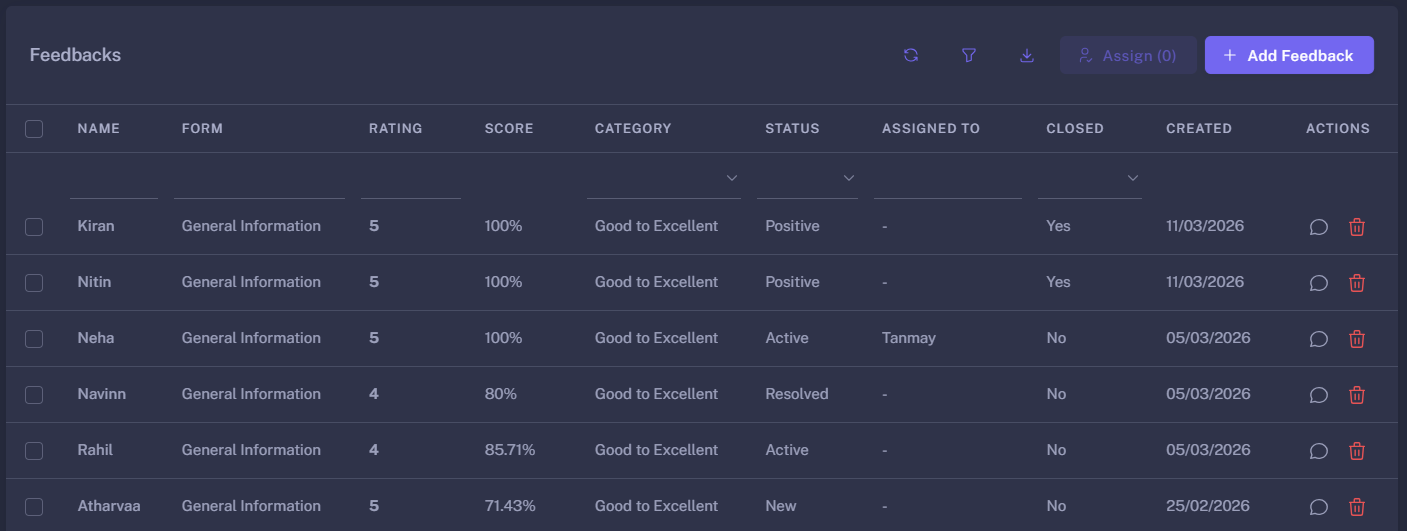
📋 Feedbacks List Overview
The main table provides a high-level summary of customer sentiment and operational status. It is designed to handle high volumes with advanced filtering and export capabilities.
🔑 Key Actions
- Bulk Assignment: Admins can select multiple feedback entries and assign them to specific Agents for follow-up in a single action.
- Excel Export: Download a comprehensive report of all feedback data. The export includes contact details, specific question responses, and calculated scores—perfect for offline deep-dive analysis.
- Advanced Filtering: Narrow down your view by:
- Rating & Score: Filter by star ratings (1–5) or specific percentage score ranges.
- Performance Category: View only “Poor Feedback,” “Satisfactory,” or “Good to Excellent.”
- Workflow Status: Filter by “OPEN” or custom statuses like “Resolved” or “Under Review.”
- Instant Chat: Click the Chat Icon to open a direct MeherY conversation window. The system passes customer details automatically to start a seamless resolution chat.
🔍 Feedback Details & Resolution
Clicking any row opens the detailed view, where you can move from “Viewing” to “Acting.”
1. Status & Assignment (Action Bar)
At the top of the details page, the Feedback Status bar allows you to:
- Update the current Workflow Status (e.g., moving from “New” to “Resolved”).
- Reassign the feedback to a different agent if specialized help is needed.
2. The Details Tab
This tab contains the raw data from the customer’s submission:
- Scoring & Ratings: View the customer’s response to specific questions. The system displays these using an intuitive Star Rating system (e.g., 5-point or 10-point scales).
- Calculated Meta-Score: See the overall percentage score and sentiment category (Good/Poor) calculated automatically by the system logic.
- Dynamic Information: Displays all custom fields (Email, Phone, Text) based on the form the customer used.
- Role-Based Permissions: Fields may be hidden or locked (Read-Only) based on your role (Admin vs. Moderator vs. User) to ensure data privacy.
3. Support & Follow-ups
Located at the bottom of the details view:
- Document Management: View or upload supporting files (images, PDFs) related to the feedback (e.g., a photo of a receipt or a resolved issue).
- Follow-up Logs: Record internal notes or specific actions taken to resolve a customer’s complaint. This ensures a transparent history of the resolution process.
🛠 Manual Feedback Entry
While most feedback is captured via external links, you can manually “Add Feedback.”
- Select Form: Choosing a form generates the specific questions and fields associated with that feedback type.
- Assign & Set Status: Manually entered feedback can be immediately assigned to an agent and set to an “Active” status for immediate work.
🚀 Pro-Tips for Feedback Management
- Watch for “Poor” Segments: Filter the list by “Poor Feedback” every morning to prioritize critical service recovery.
- Use Excel for Trends: Export data monthly to see if specific agents or locations are consistently receiving higher or lower scores.
- Close the Loop: Always mark feedback as “Closed: Yes” once the customer is satisfied to keep your Dashboard analytics accurate.
Every feedback is an opportunity to improve. Manage them with precision.